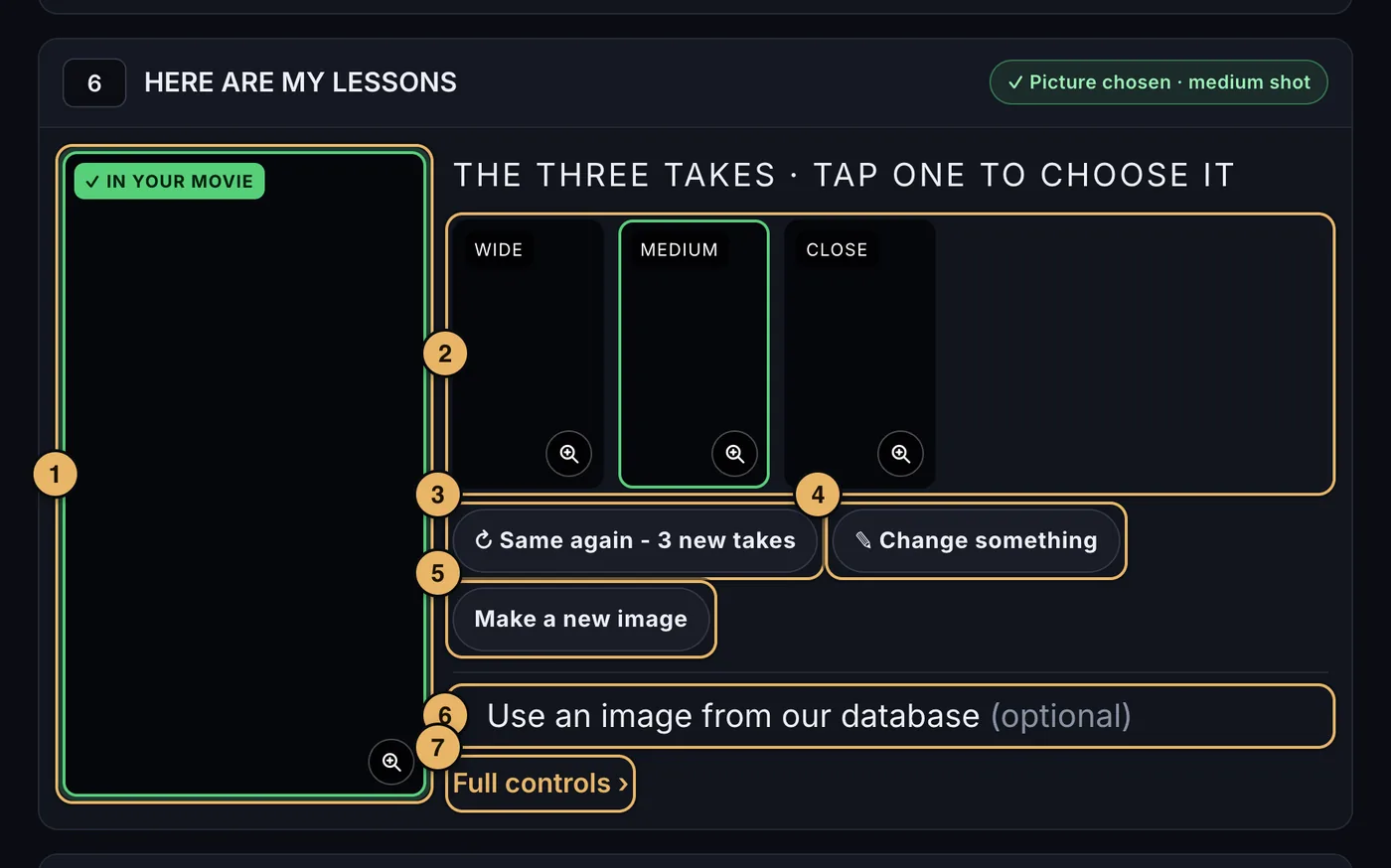
- The chosen picture. Large, with a green edge and ✓ In your movie. This is the picture the scene is filmed from. Tap the magnifier to see it full size.
- The three takes. One wide, one medium, one close. Tap the one you want. Tap it again to unpick it.
- ↻ Same again - 3 new takes. Three new pictures from the same words.
- ✎ Change something. Say in your own words what should be different - change only that in this picture, or start a fresh take of the scene.
- Make a new image. Opens Outline your idea: sketch a whole new scene in your own words and three pictures are made from it, the old scene forgotten.
- Use an image from our database. Choose a picture you love and we make three pictures of you in that style. See below.
- Full controls. Opens this scene in the scene editor, with the full prompts.
The chip at the top of each card says where it is up to: No pictures yet, 3 made · pick one, ✓ Picture chosen, or Making your 3 new images… while they are made. Three pictures take up to 5 minutes. You can carry on with other scenes while you wait.
A scene with no words yet shows a box: say what is in the picture, then press Make 3 pictures.
Each movie includes 500 images. The count at the top of the page says how many are left.
Use an image from our database
If you would rather show than describe, choose a picture you love and we make three pictures of you in that style.
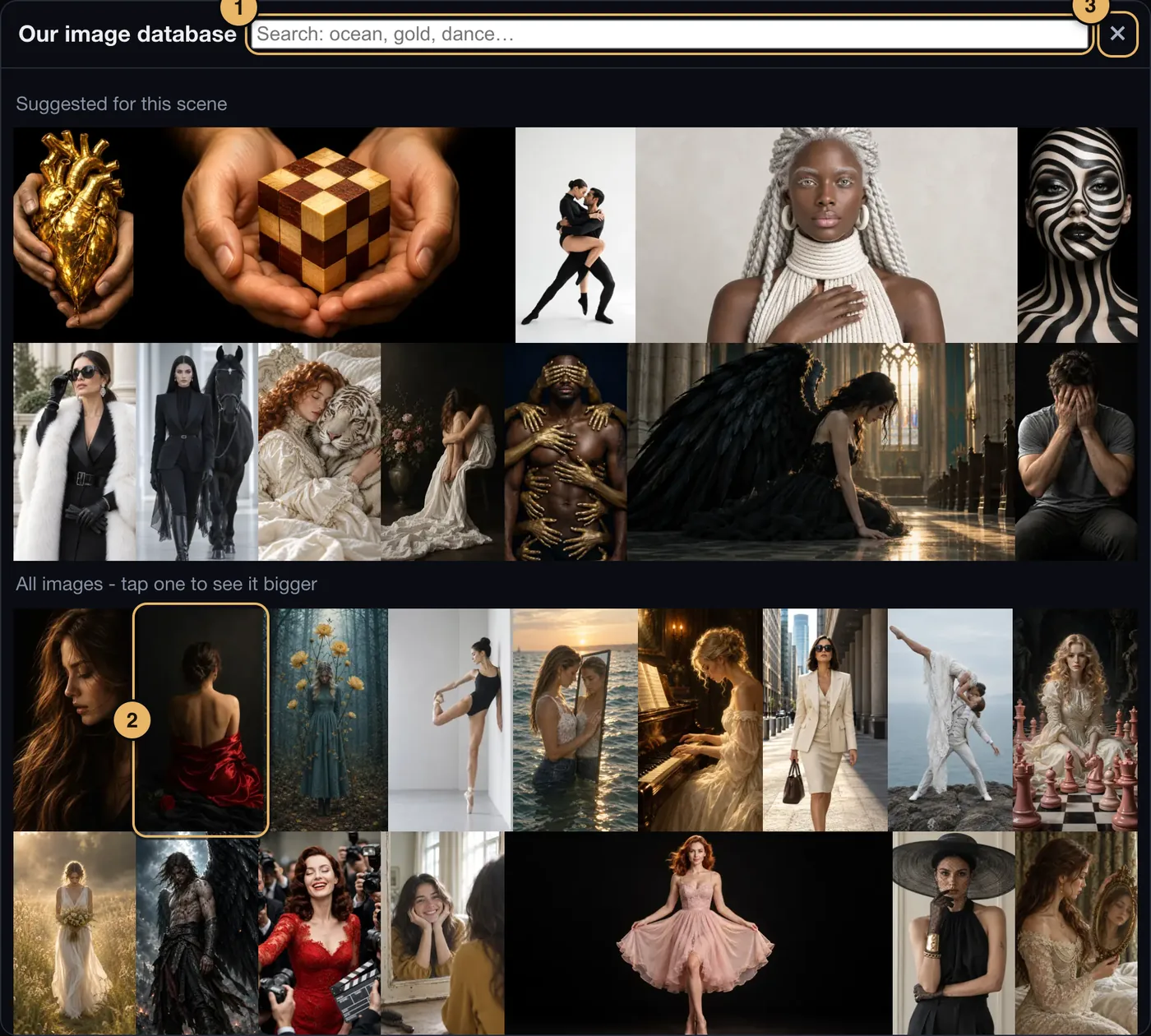
- Search. Type a word - ocean, gold, dance.
- A picture. Tap it to see it bigger, then press Use this image.
- Close. Goes back to your scene without choosing.
Choosing a picture fills in the scene’s image prompt. Press Create images like this of me to see yourself in it. A few pictures carry the note May not work with your photos
. They can be tried, but the result is less certain.
Use a picture of your own
Under the image database there is a second option, Use a picture of your own. Show us a photo you love - a place, a pose, a mood - from your phone's camera roll or your computer, and we make three pictures of you in it.
- Press Choose a photo (JPEG, PNG or HEIC). The photo is shrunk on your device before it leaves.
- We look at it and write the words that describe the picture: the place, the light, the mood, the pose, the clothes. This takes about five seconds.
- The words appear in a box. Change anything you like, then press Create images like this of me. That uses three of your images, like any other round.
The person in your photo is never copied: the words describe the scene, and you are placed in it with your own face and body, from your page-3 pictures. The description becomes this scene's image prompt, so Same again, Change something and Full controls work on it as usual.
Your photo is not kept. It is sent once so we can describe it and then discarded; only the words are saved with the scene. If a photo cannot be used - nothing recognisable in it, or something we will not make - the box says why, and nothing is spent.
The opening and closing scenes
Every Vision Movie opens with you walking toward the camera on white, and closes on you in close-up with the caption “That’s My Vision”. These two scenes stay first and last, and are made from your three pictures from page 3. There is nothing to pick: all three shots are used.
On the opening scene, Your outfit can describe different clothes; Make 3 in this outfit makes the three shots again in them.
If something goes wrong here
See Images that are declined or fail, Waiting and Limits.