When you press Turn my answers into scenes on page 4, we write a caption for each scene from your answers. They arrive here. While they are being written the page shows a gold Hang tight banner; it takes about a minute.
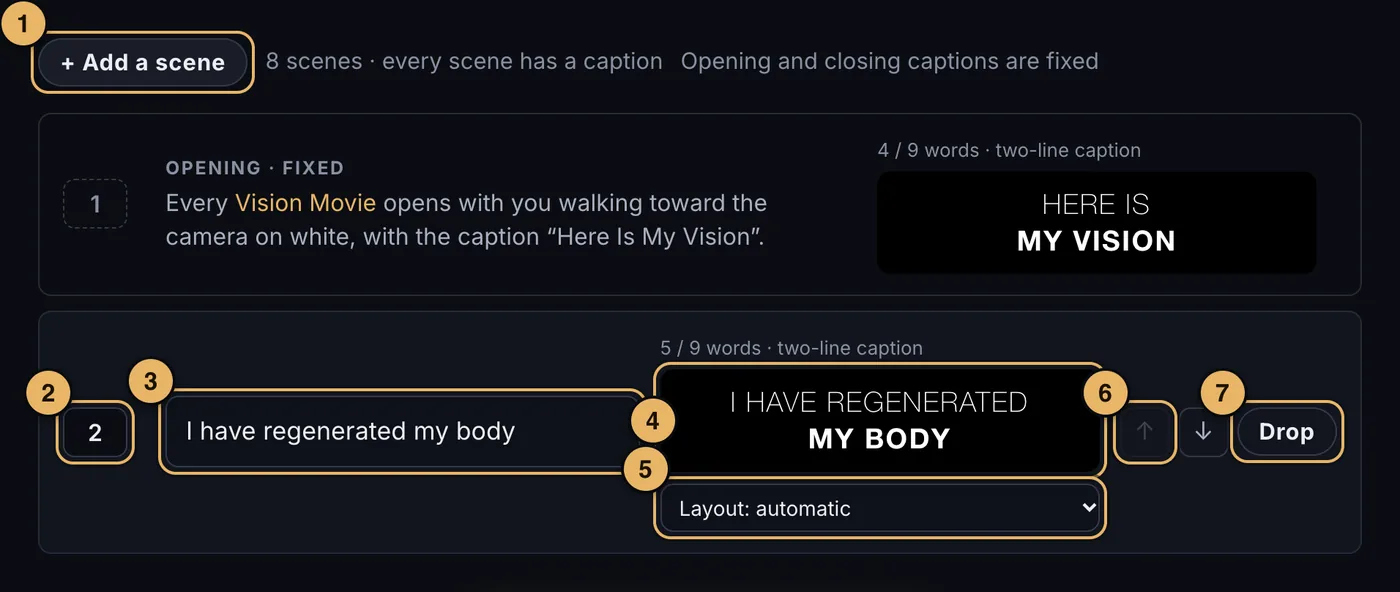
- + Add a scene. Adds an empty scene above the closing scene.
- Scene number. Type a new number and press Return to move the scene there.
- The caption. Type here. Up to nine words - the shorter the better. It is saved as you type.
- The preview. Exactly how the caption will read on screen: two lines, or three with a red last line.
- Layout. Leave it on automatic, or choose two lines or three lines.
- Up and down arrows. Move the scene one place.
- Drop. Takes the scene out of your movie.
The opening and closing scenes have fixed captions: Here Is My Vision and That’s My Vision. Every Vision Movie has them.
You do not have to keep 25 scenes. Twenty is often enough to capture your vision. Drop the ones you do not want.
Scenes cannot be moved while images or videos are being made. Wait until they finish.
When your captions are right, press Next: create your images.
Already written your vision?
If your vision is already written down - a page of notes, a letter to your future self, a plan with headings - you do not need the questions on page 4. Open Already written your vision? at the top of this page and choose the document: a text file, a Markdown file, a Word file (.docx) or a PDF. On a phone it opens your files. You can also paste the words.
We show you what we read. Tidy it if you like - each heading or paragraph becomes a short sequence of scenes - then press Write my captions from this document. It takes about a minute, and the captions arrive in the list below, ready for you to change. If you already have captions, choose first whether to replace them or add to them.
For a paid movie we then make three pictures for every scene straight away, exactly as page 4 does. Your document is read once and is not kept: only the captions and scene descriptions we write from it are saved to your movie.
If something goes wrong here
If no captions appear after a few minutes, see Waiting.
If a Word or PDF file will not open, save it as a PDF or plain text and try again, or paste the words. Pages files need exporting to PDF first.